How to use filters in reports?
With the help of the OZIAgent Reports feature, you can generate any specific report you require and export it in CSV. This can be achieved by using different filters and combination of these filters to generate the exact information you looking for.
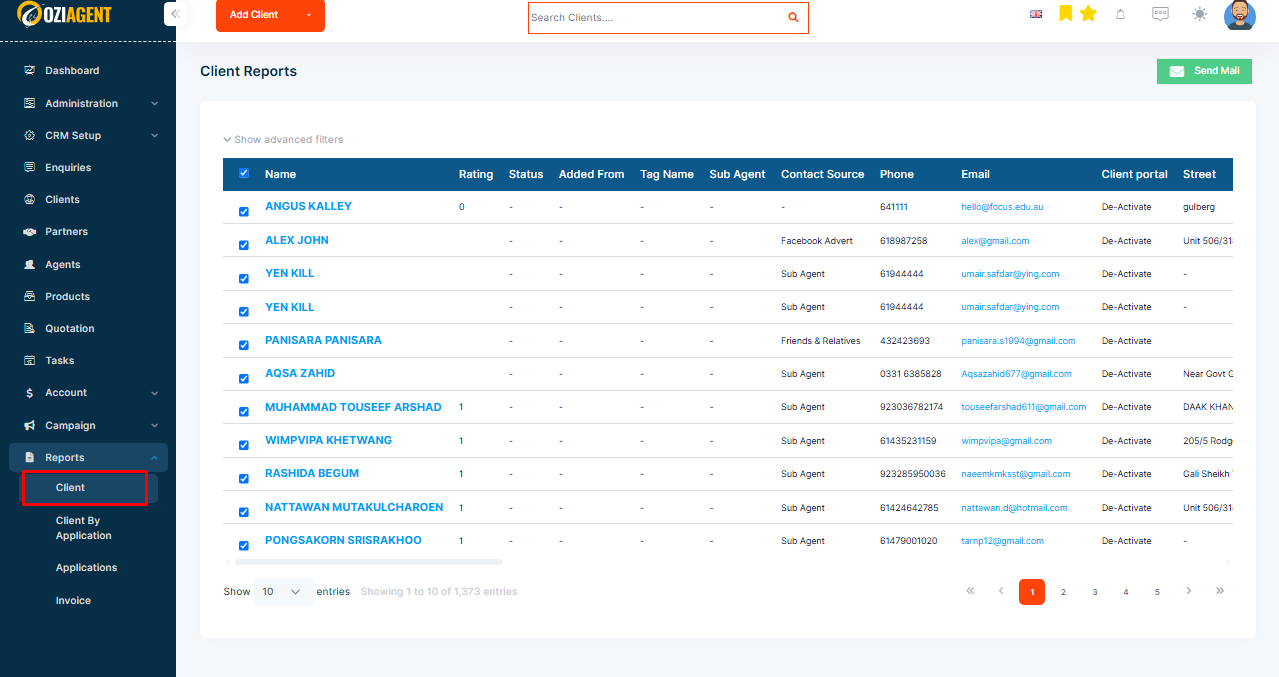
Client Reports (contains leads, prospect, and client general information data)
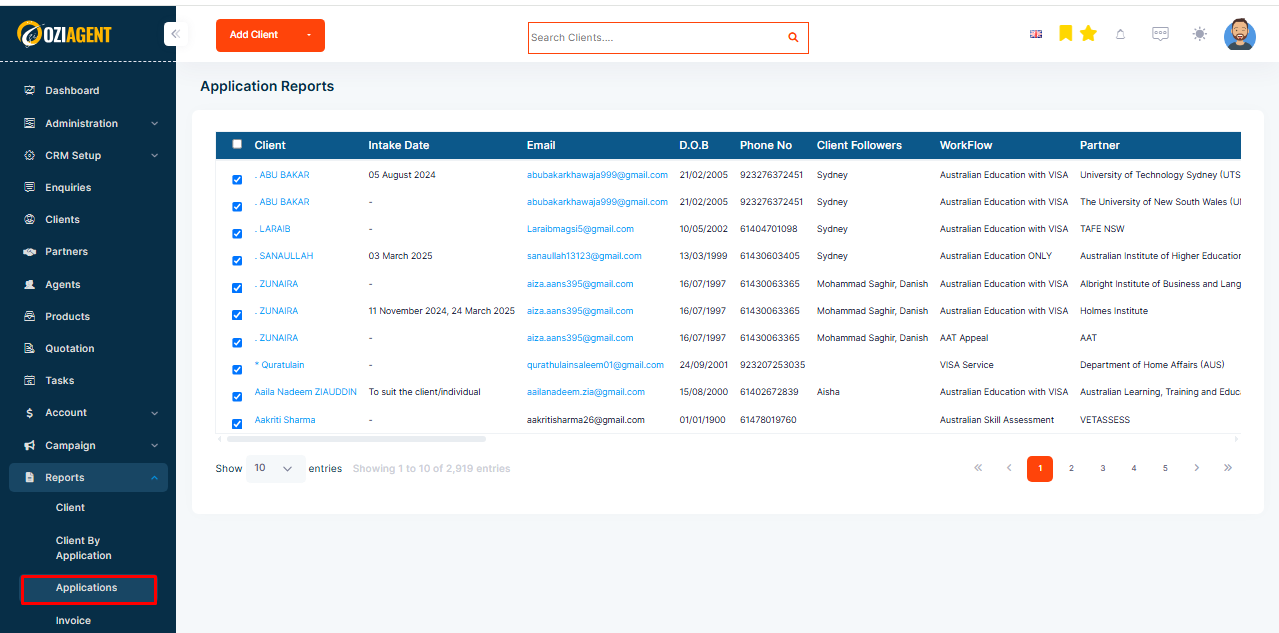
Application Report (contains all client's applications data)
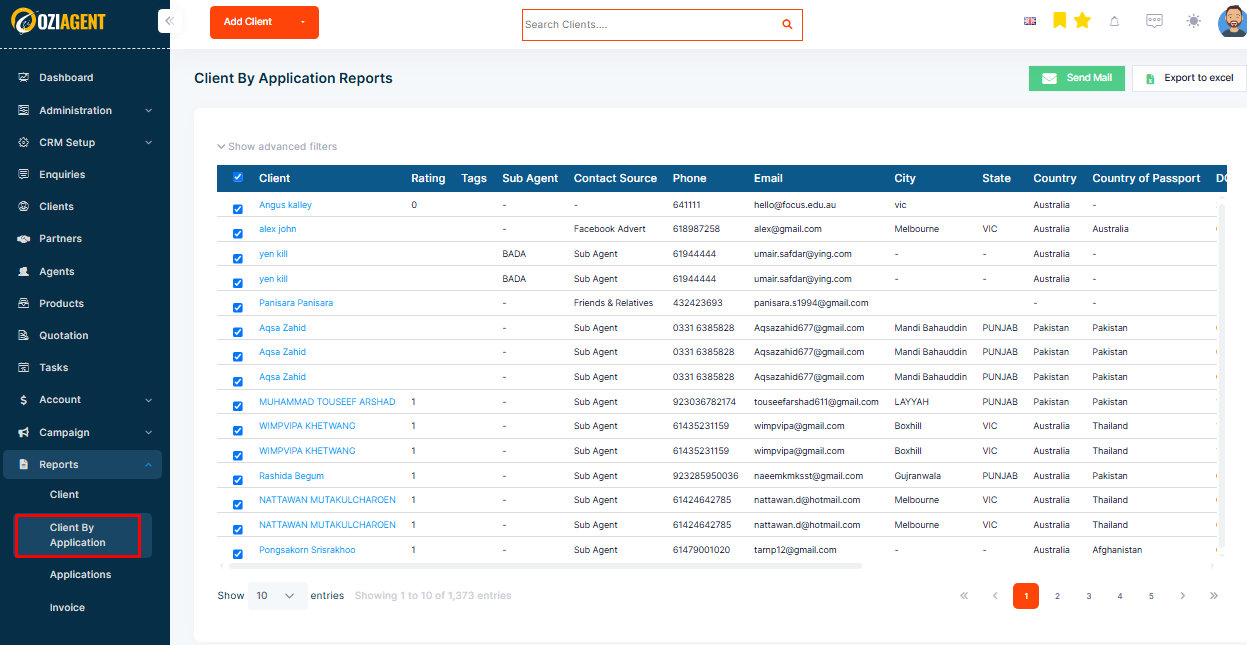
Client by Application Report (contains all client's general information data with application filters)
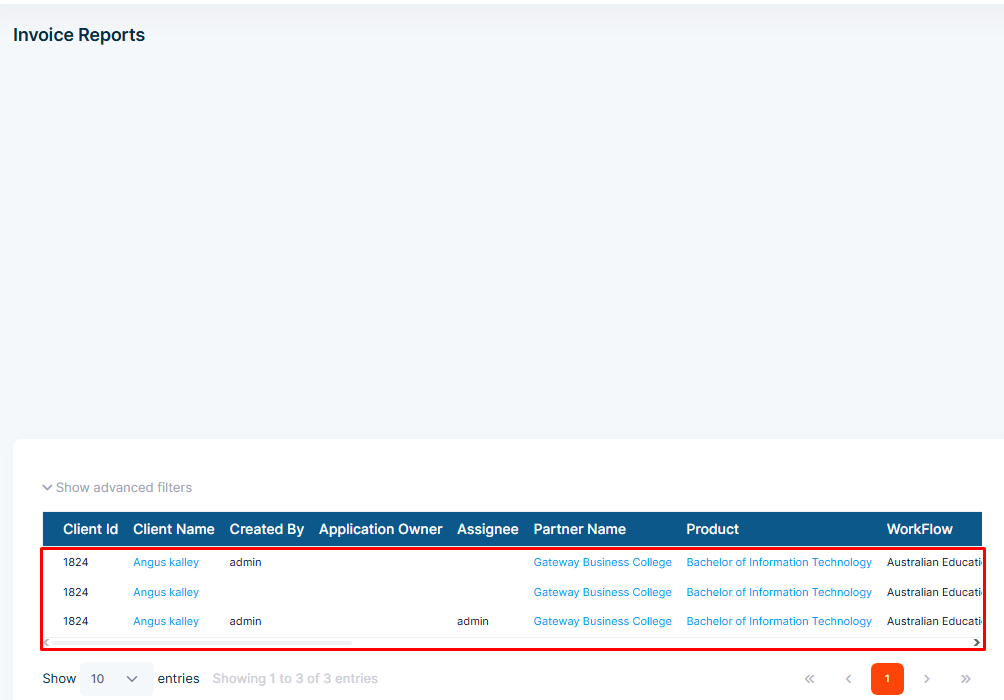
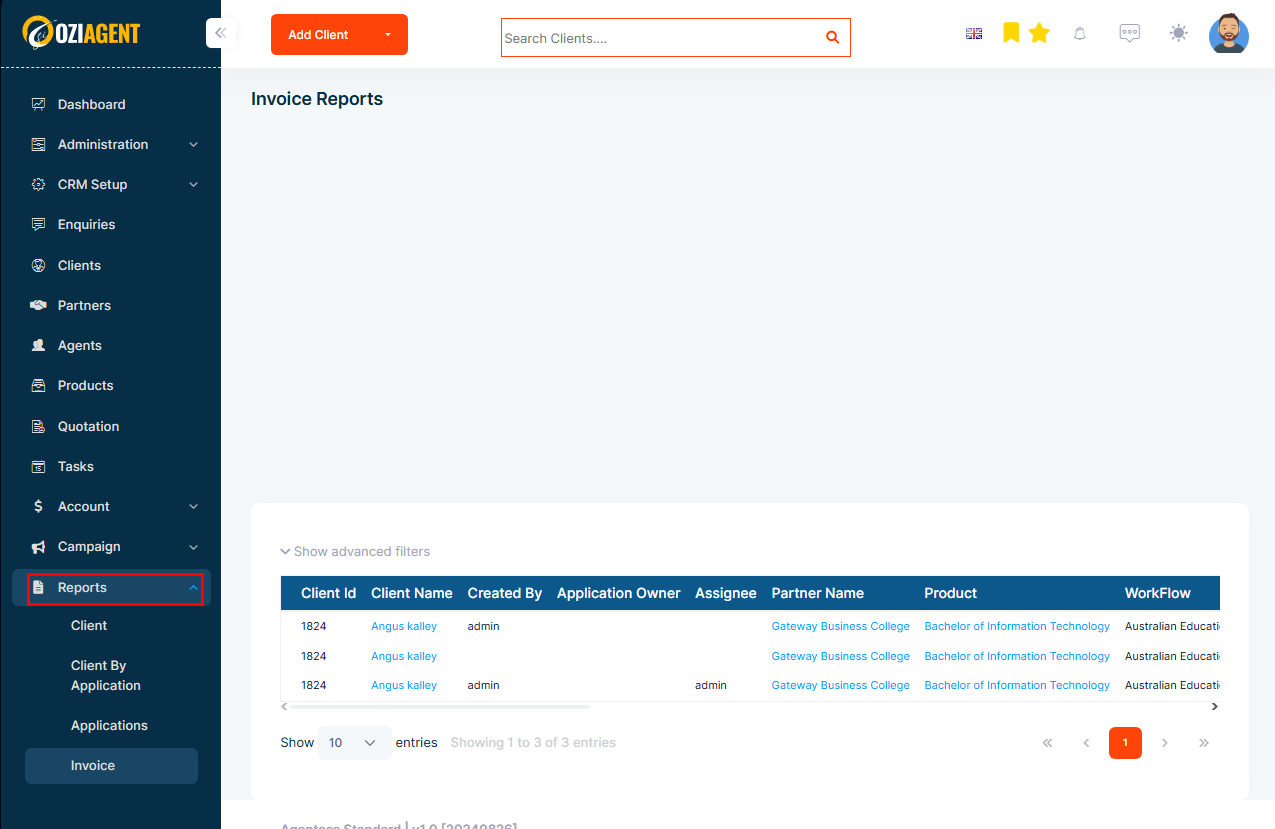
Invoice Report (contains all created invoices data)
Accessing the reports
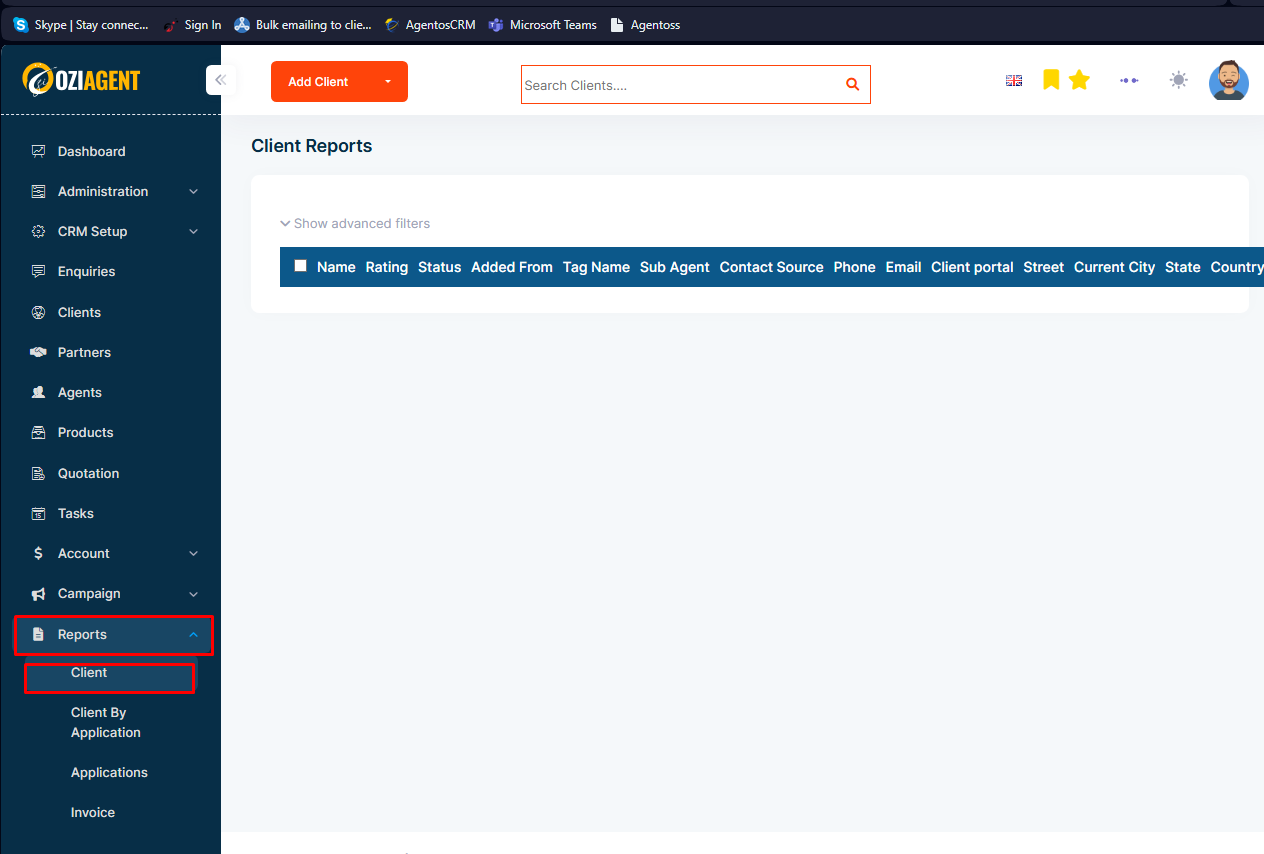
Step 1: Select Report from the side navigation bar.
Step 2: Select Client from the drop-down.
Understanding the Reports Page
You will be able to access each report by selecting the respective report. You can do each of these actions on the reports page:
Rows per page and pagination: Available in all Reports.
Use Filters: Available in all Reports.
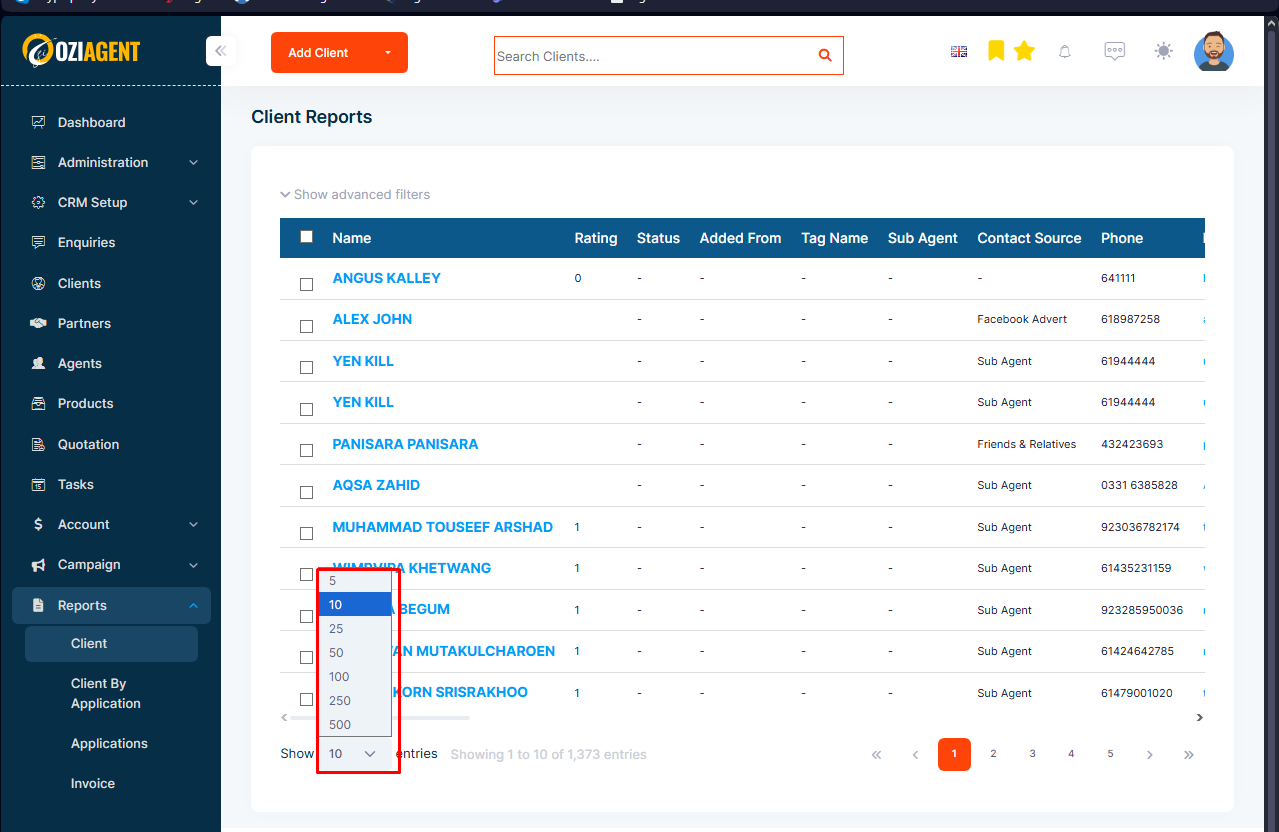
Managing Rows per Page:
The initial reports will only show 10 rows of data by default. You can change this by selecting Rows per page according to your requirements. The max rows per page is 500.
Bulk Email Action from Reports:
You can also send bulk emails to contacts from the Client Report, Client by Application Report.
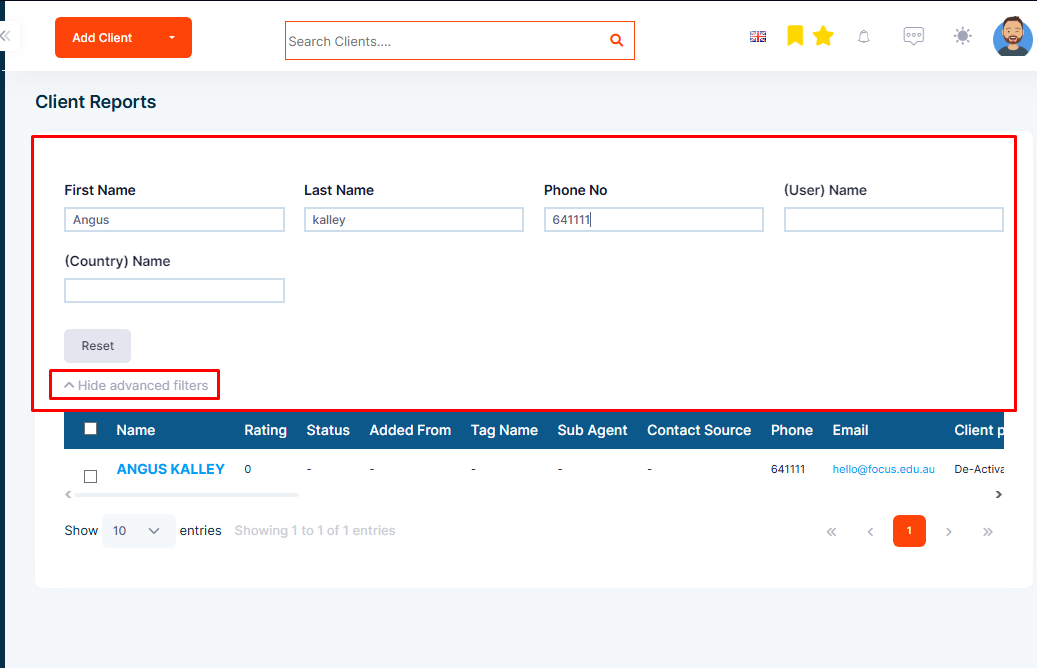
Using Filters in Report:
You can use filters to get more specific data sets as per your needs.