Uploading Document and management
How to upload document to the client and partner profile?
As a counselor, you have to record and submit various documents from your clients used in the International Education admission process. That’s why OZIAgent has a document management feature through which you can easily manage your documents.
You can either manage documents in contacts, applications, partners and tasks. You can upload documents from 2 sources – from the OZIAgent system or from your device.
Also, when a lead submits a document with their Lead Form, those documents are recorded in the Documents tab of the contact’s profile.
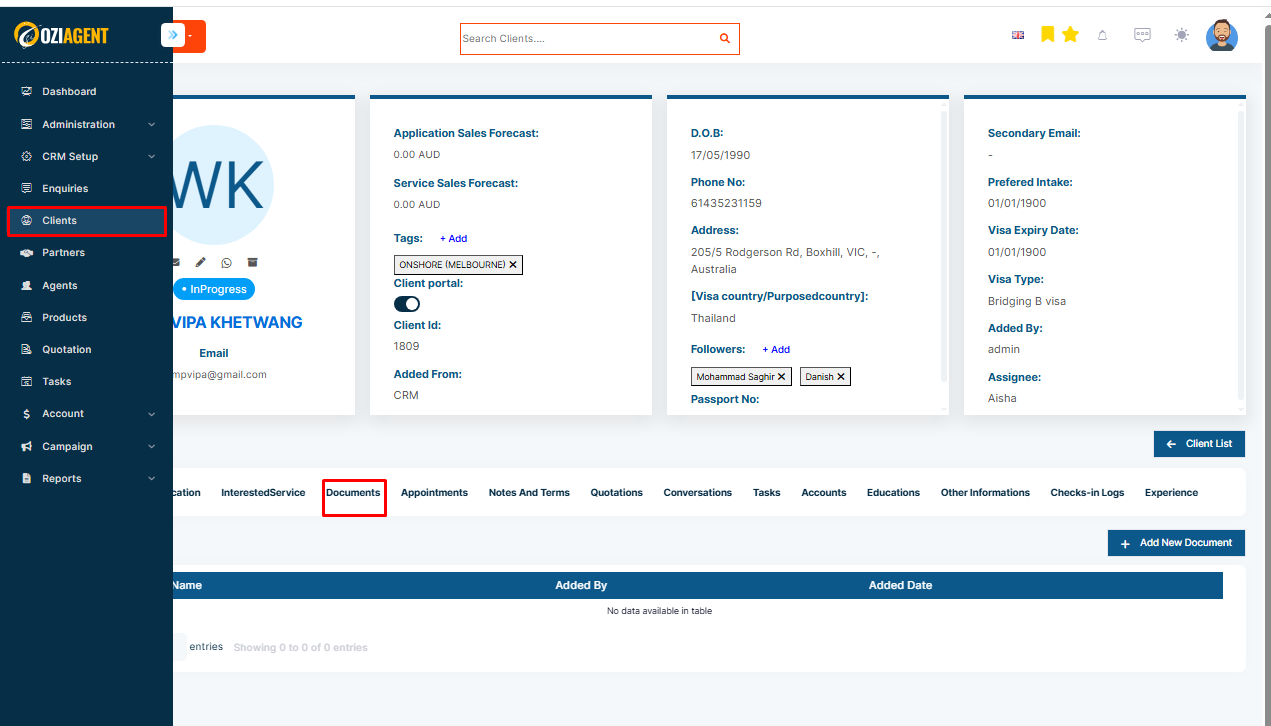
To add a document in the contact or partner,
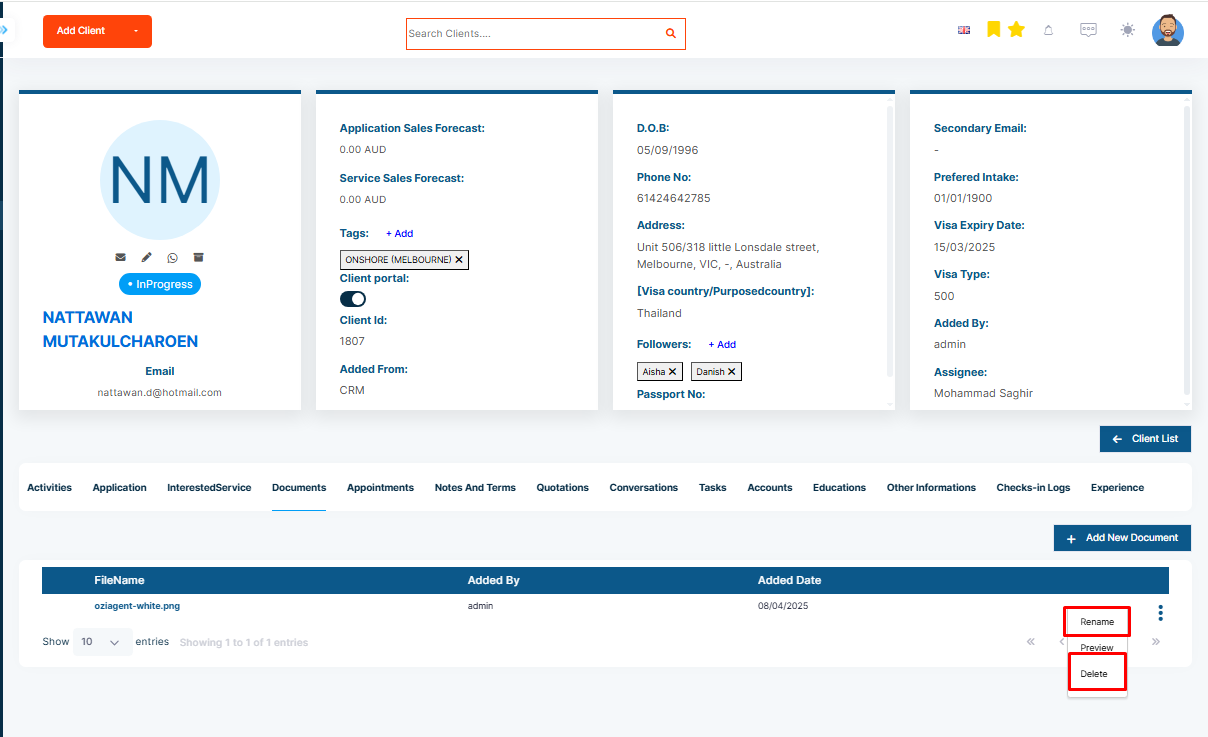
Step 1: Select the Documents tab in their profile.
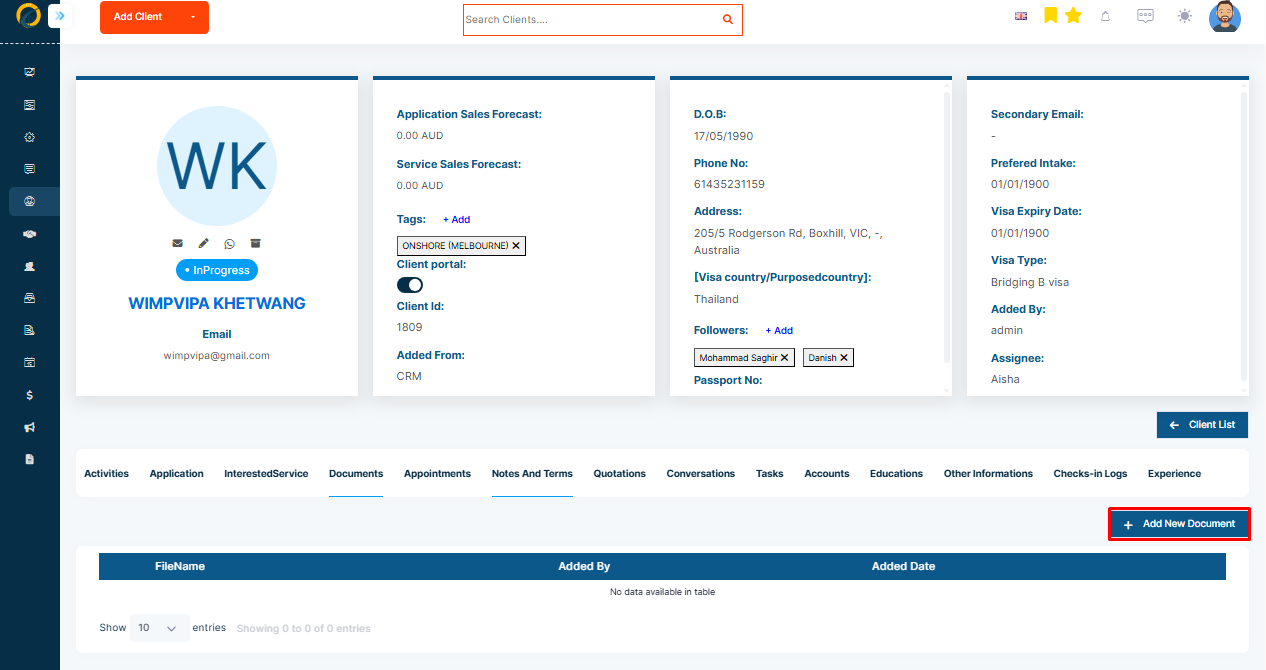
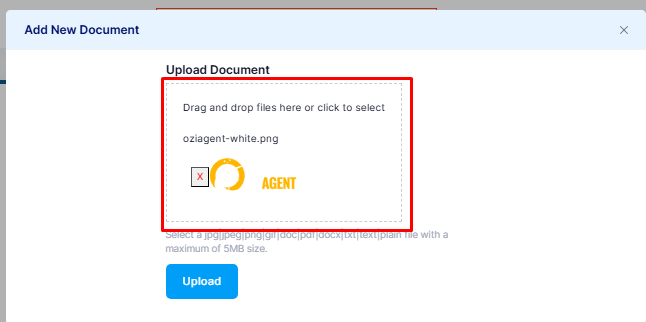
Step 2: Click on the Add Document button, you can upload documents directly from your device or computer.
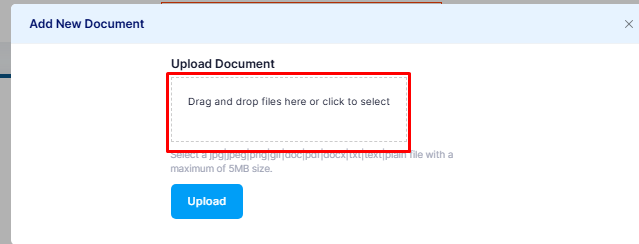
Step 3: Click on Drag and Drop Area.
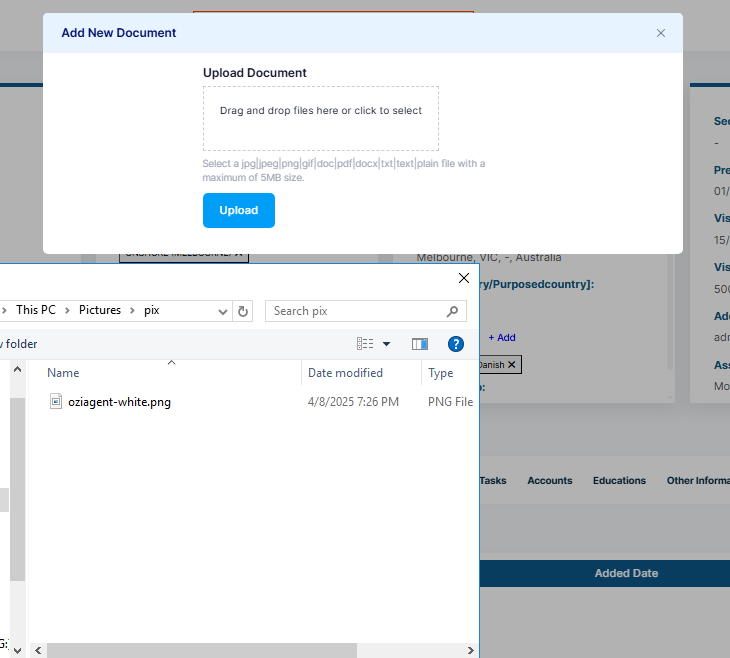
Step 4: This opens the Select from Device window.
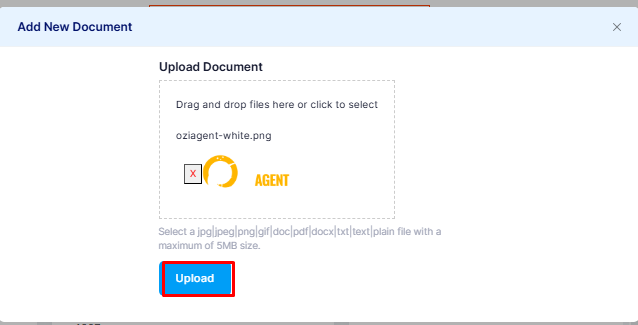
Step 5: You can either drag your files from the computer to the upload area or click on the upload area to open the system dialogue box.
Step 6: Once the documents are uploaded, you will be able to see them in the Selected Documents section. You can rename the document by clicking the three dot icon, then selecting Rename, and also remove it from the list by clicking on Delete.