Include bank details in invoices for convenient payment processing.
Along with your address information, it is crucial to maintain the bank details in the invoice to let customers know the most feasible way to make manual payments. You can add different bank accounts for different types of income and add those bank details to your invoices.
To manage the bank details:
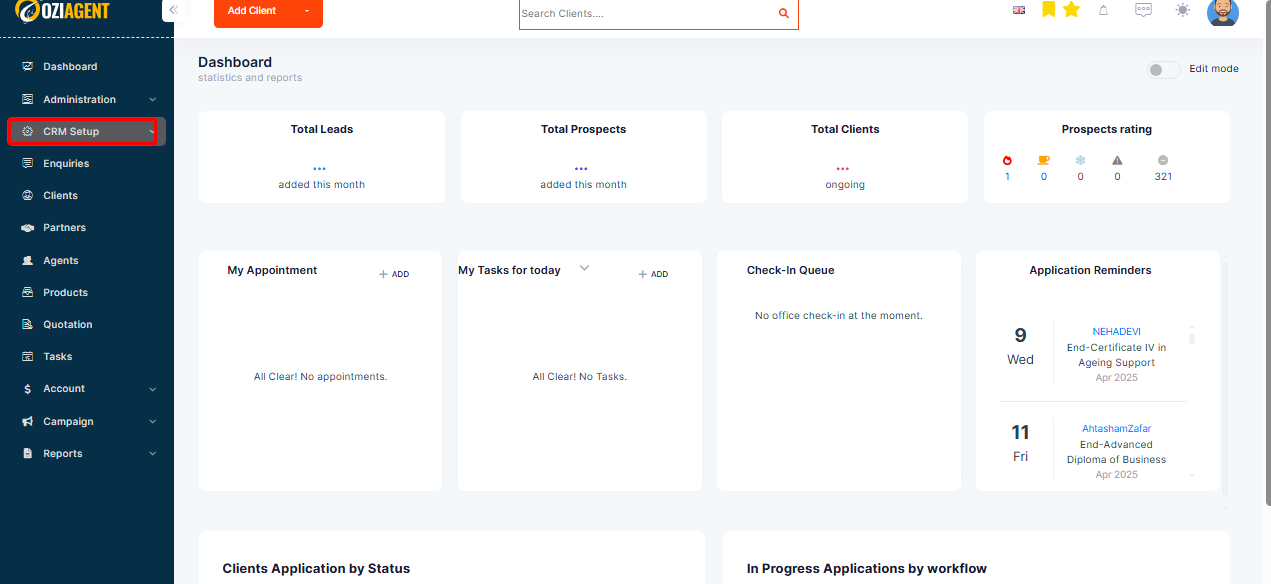
Step 1: Select CRMsetup from the Left navigation bar.
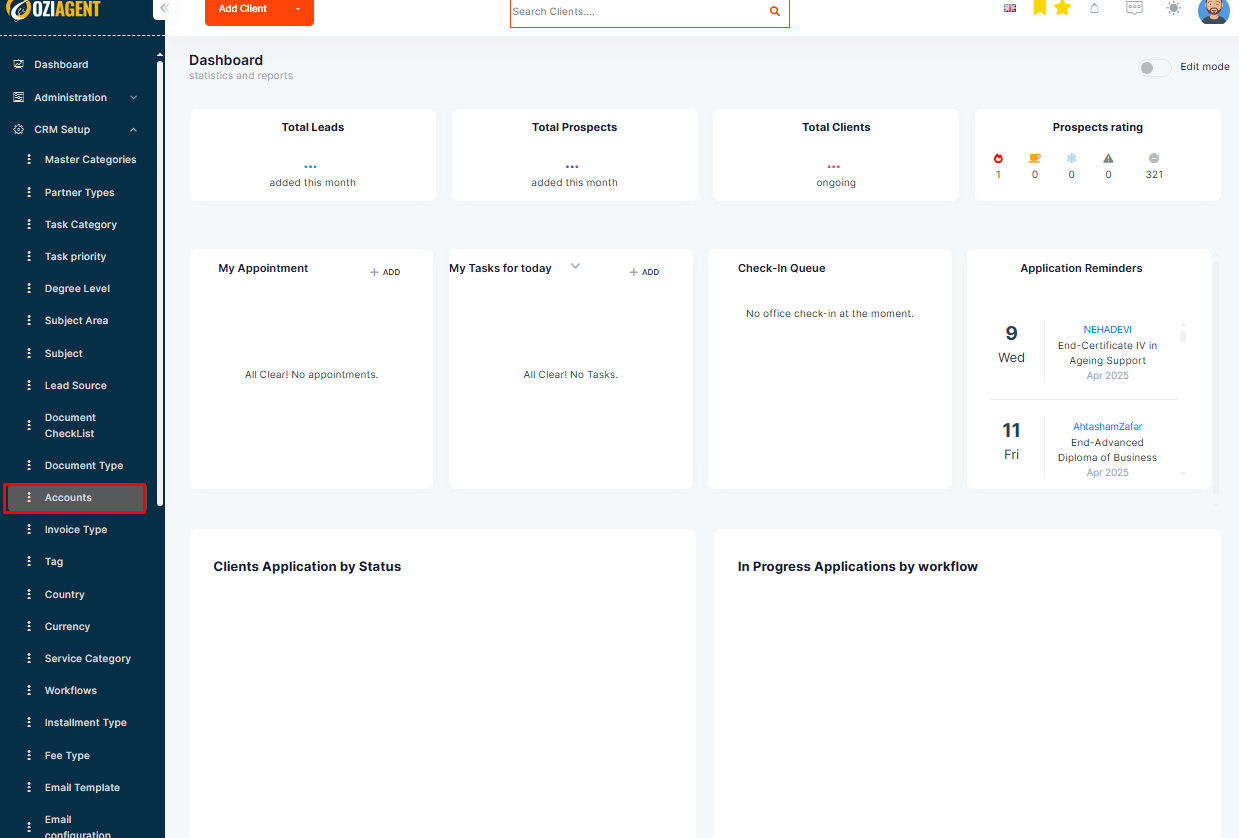
Step 2: Select Accounts.
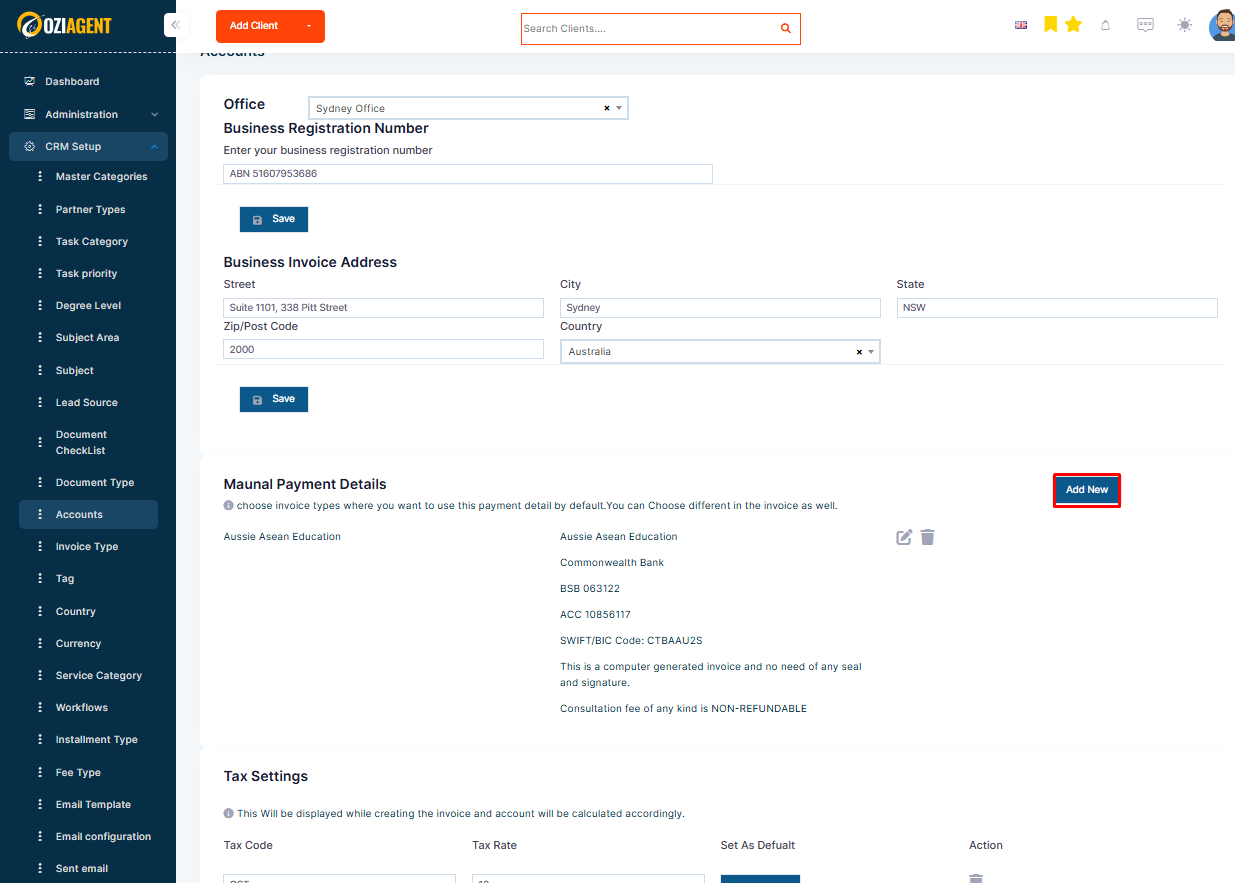
Step 3: Under the Make Manual Payment Details module, select Add New.
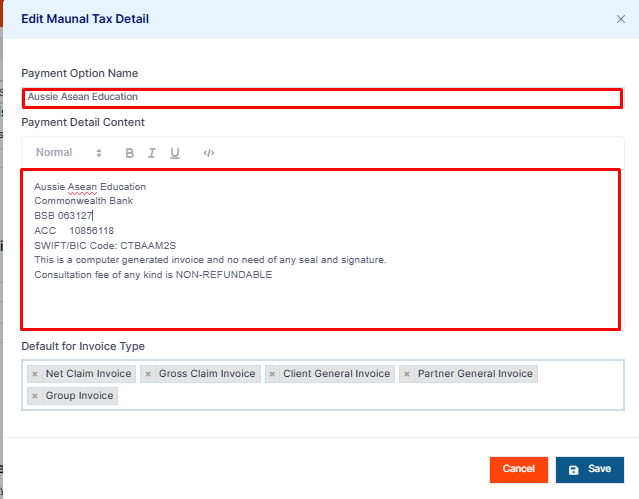
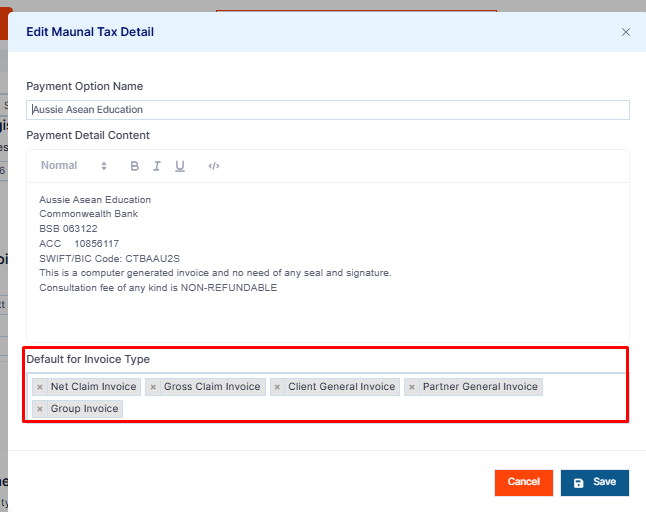
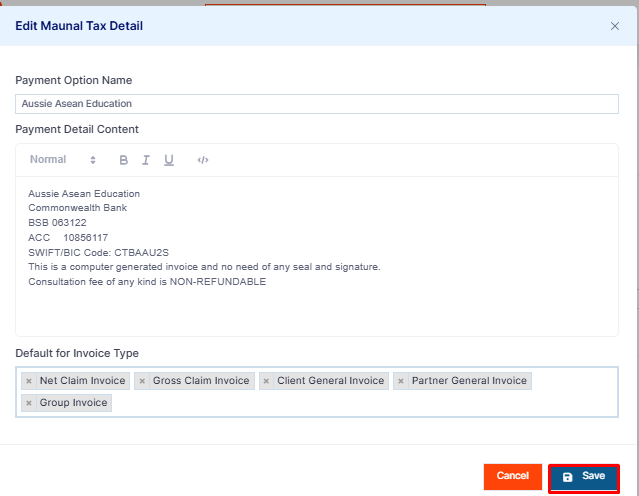
Step 4: Fill in the details in the pop-up that appears. Under the Payment Option Name, you can add the bank name. Similarly, in the Payment Details content, you can add the details of the bank account:
- Account Holder’s Name
- Bank Account Number
- BSB
Note: These fields are mandatory.
Step 5: In the Default for Invoice Type, select the invoice type for which you want to set the bank account details as default.
- For example, if you select Net Commission Invoice as Default, then whenever a net commission invoice is created, the bank details will automatically be shared. However, different payment methods can still be selected while creating the invoice.
Step 6: After adding the details, click on Add.