Creating and scheduling tasks are a great way to manage your time and keep track of daily work activities. OZIAgent provides complete task management and helps track your tasks, where you can collaborate tasks with other team members. You also get notified when tasks are due or new comments are added.
Each task can be related to your contact, application, partner, or internal. You can also choose various categories of tasks such as reminder, call, follow up, email, meeting, support, and others.
There are several ways you can add a task in OZIAgent. Since tasks play a major role in day to day activities, creating tasks is accessible from the top bar, contact, application, partner, email, and task page.
Now let’s create a task
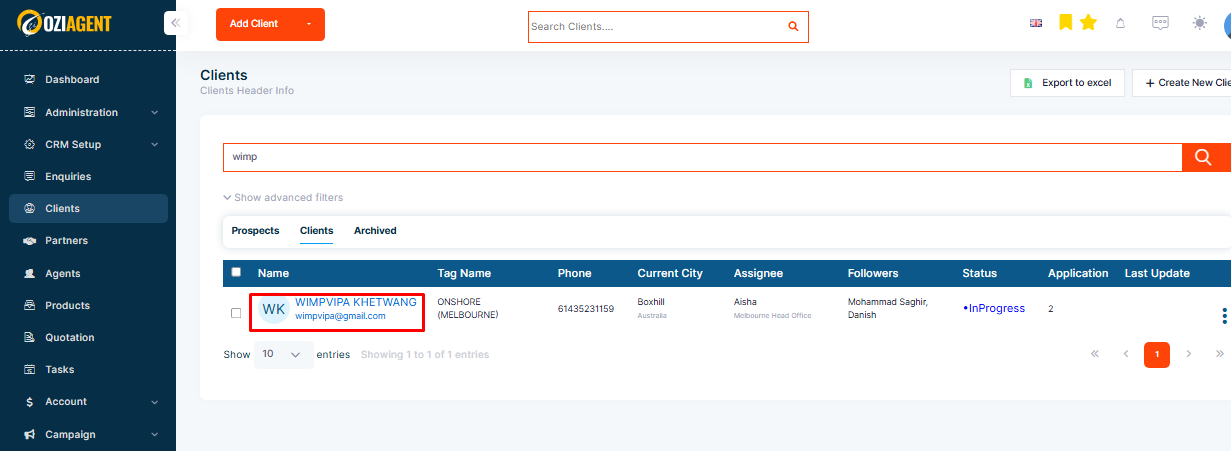
Step 1: go to the client tab in the navigation bar and click on the client Name
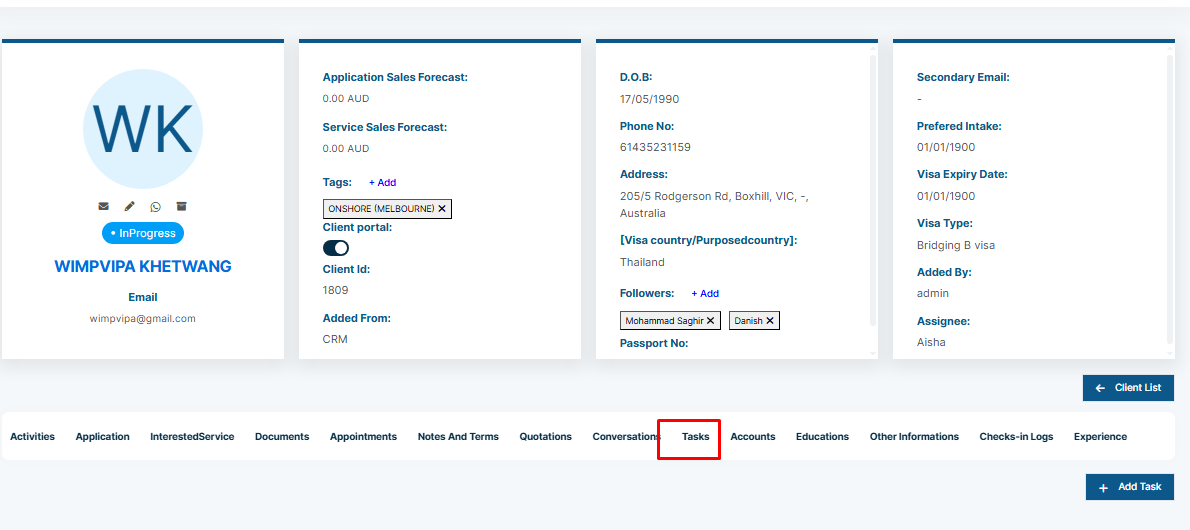
Step 2: Then select Tasks.
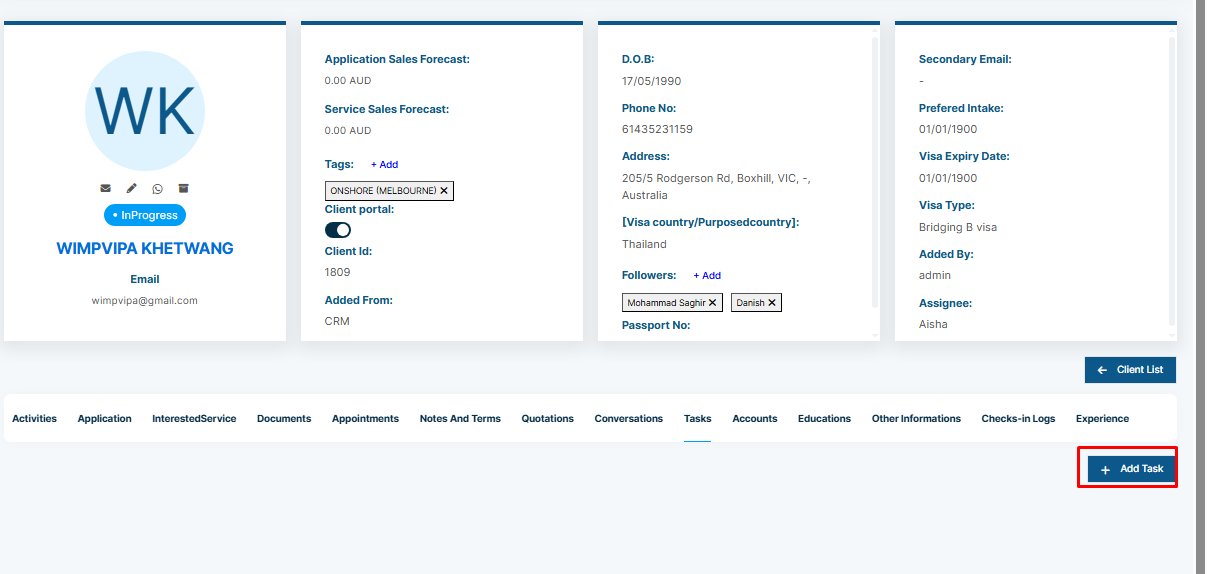
Step 3: This will open a Create New Task slider from the right.
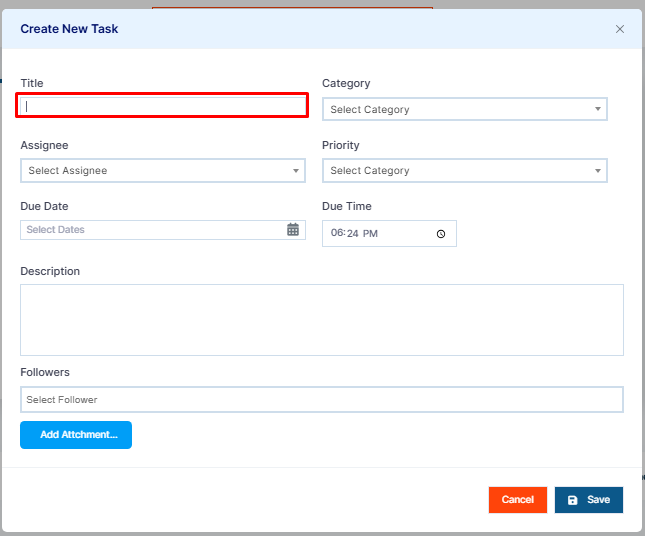
Step 4: Input a Title of the task and make it more specific.
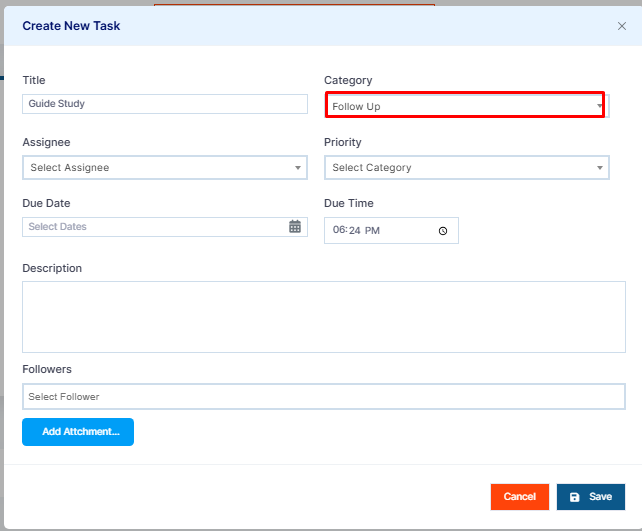
Step 5: Then select the related Task Category. This can help you to categorize your task and plan your day accordingly.
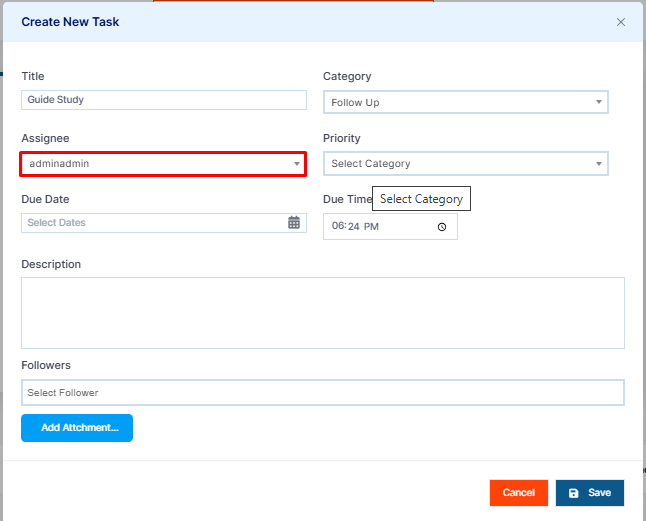
Note: You will be auto-assigned to a new task that you are creating.
Step 6: However, you can assign a task to other team members by selecting a different assignee under the Assignee section.
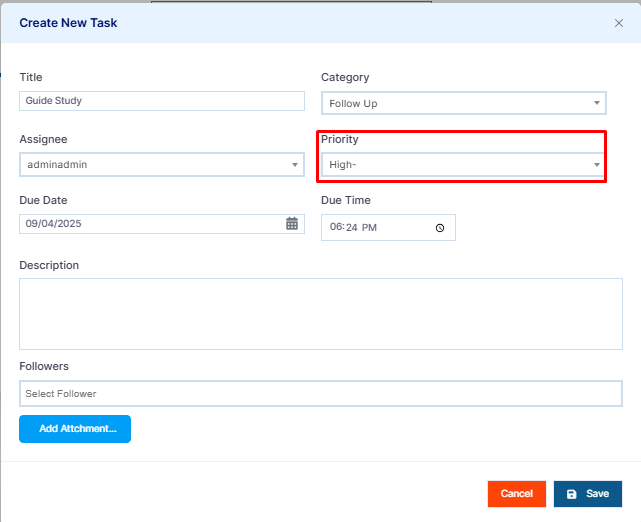
Step 7: You can also set the Priority to specify the urgency of the task.
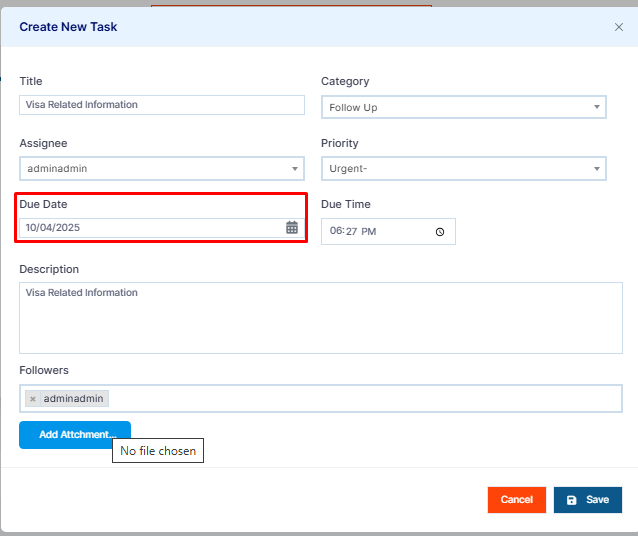
Step 8: Set the task Due Date and Due Time if you want the task to be completed on a specified date and time.
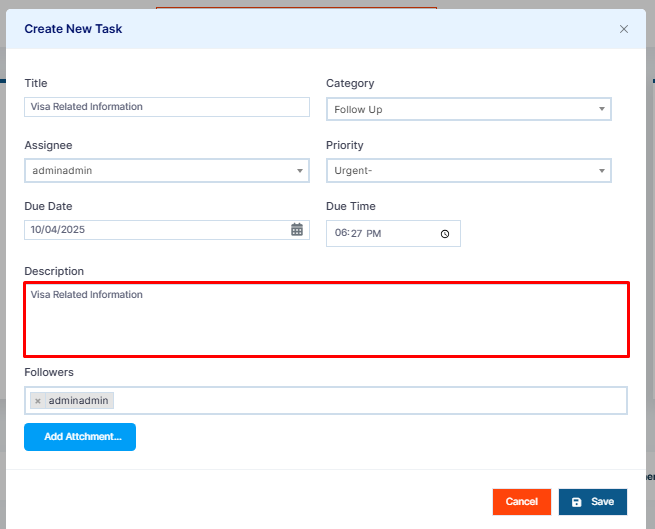
Step 9: You can enter a Task Description to input more details on the task.
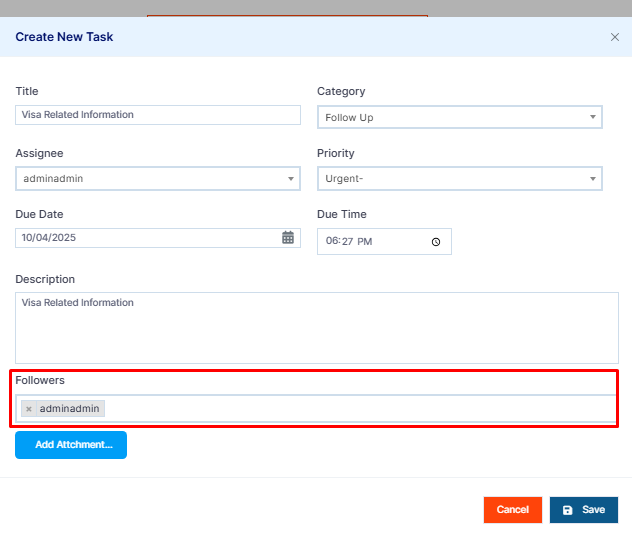
Step 10: Sometimes, the task requires supervision or collaboration with other team members. For this, you can add multiple team members as Followers of the task. Followers will be able to view, comment, and make changes to the task.
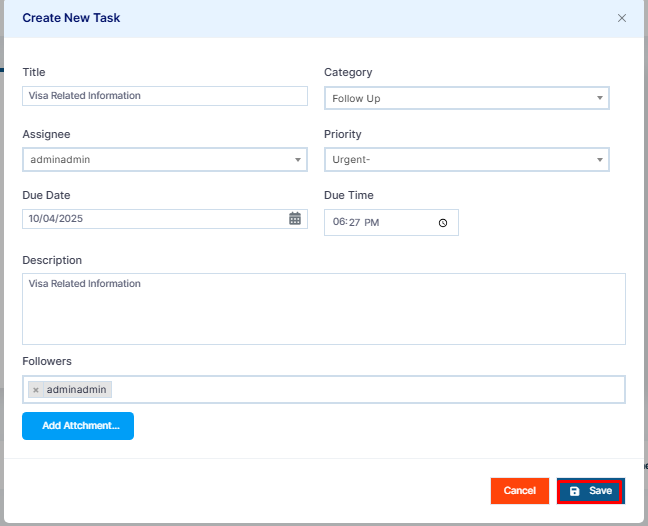
Step 11: Finally, click the Create button and you’ve successfully created a task!