Creating a Partner Group Invoice
How to create a Partner Group Invoice in OZIAgent?
Creating a Partner Group Invoice
This tutorial guides you through the process of Creating a Partner Group Invoice in the OZIAgent system, ensuring a simple and efficient invoicing procedure.
You can group all your commission invoices of a partner together to create a single invoice.
Please Note: Group invoice is created for gross claim invoice.
To create a partner group invoice, please make sure you have the permission to do so:
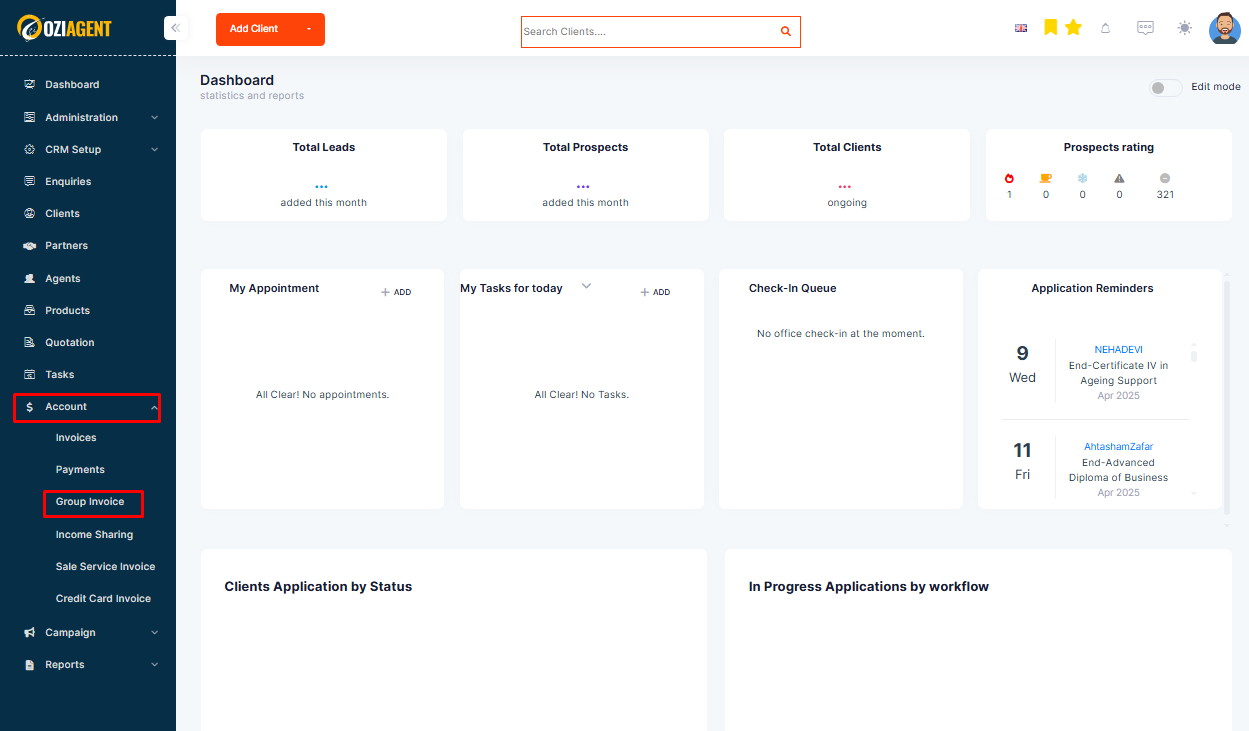
Step 1: Select Accounts from the side navigation bar.
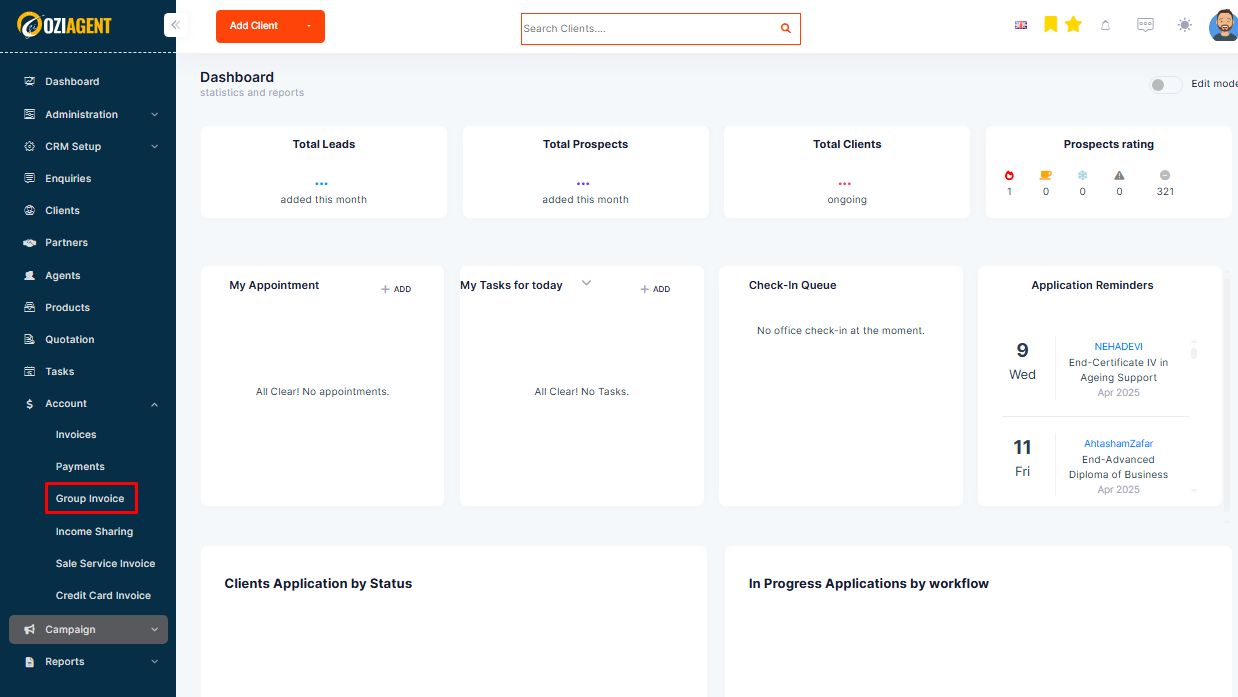
Step 2: Select Group Invoice from the dropdown.
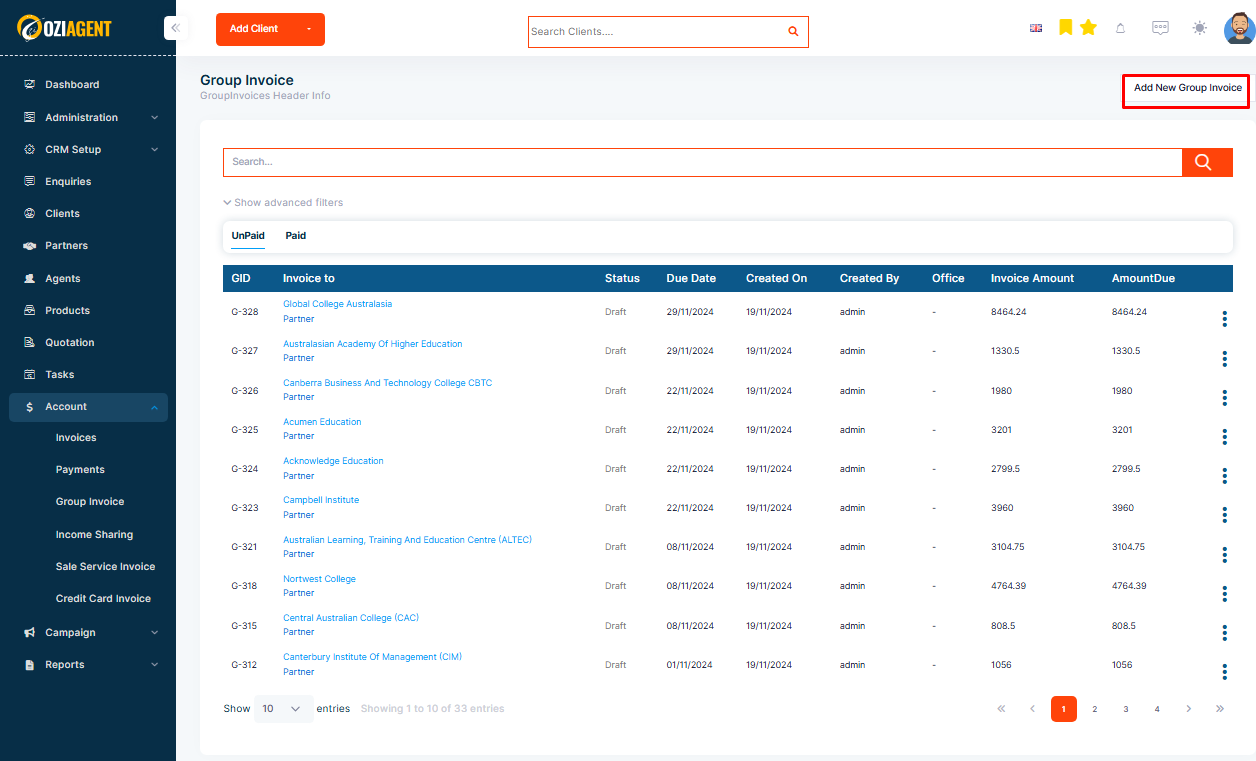
Step 3: Click on Create Group Invoice.
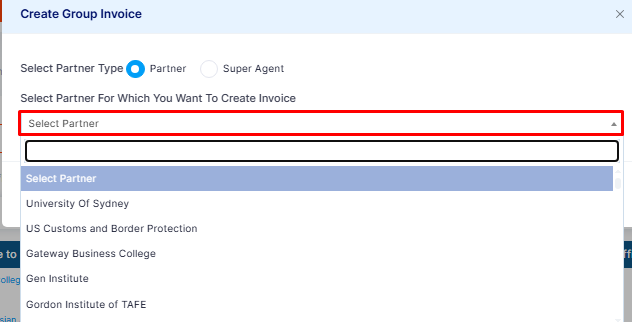
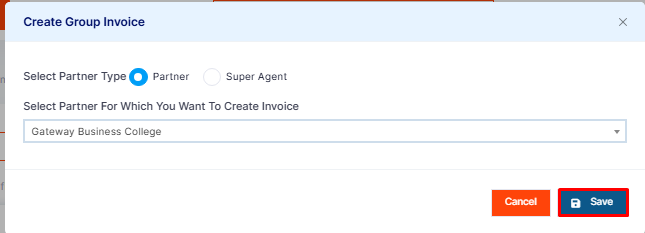
Step 4: In the popup, select Partner.
Step 5: Then from the dropdown menu, select the partner.
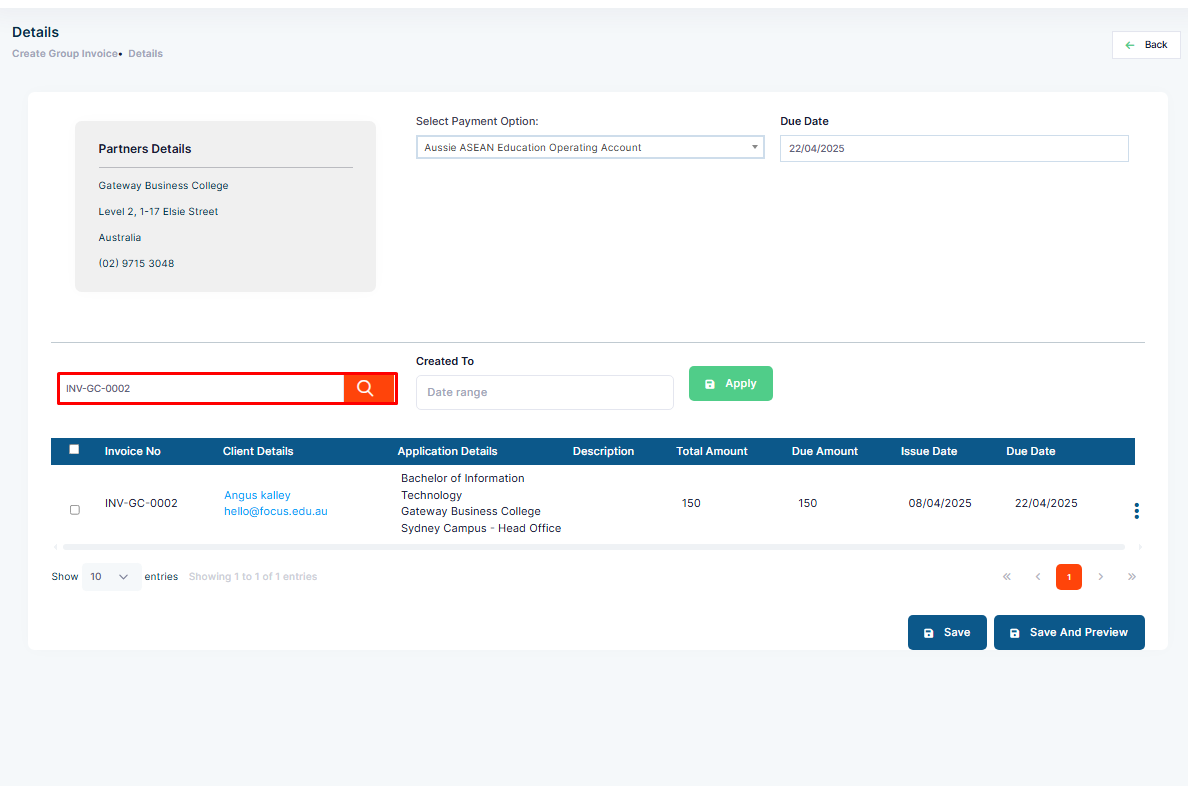
Step 6: You can search for the invoice by their numbers or client name.
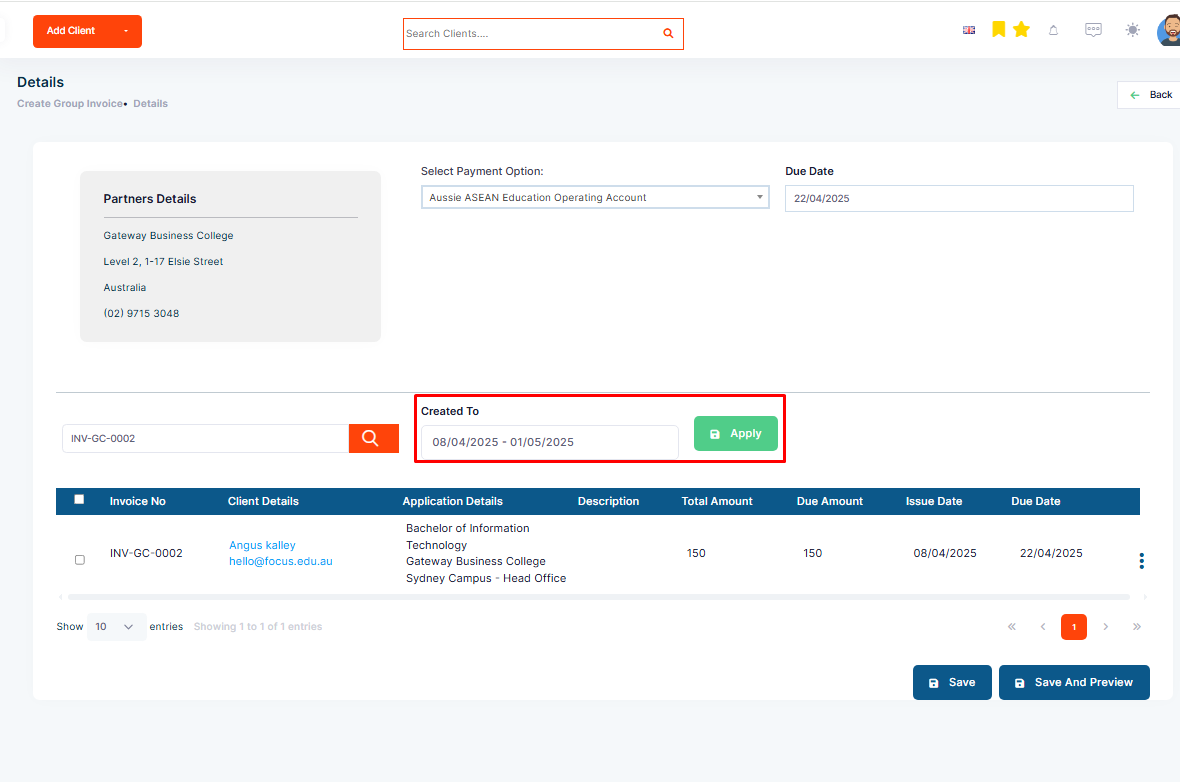
Step 7: You can also apply the created date filter.
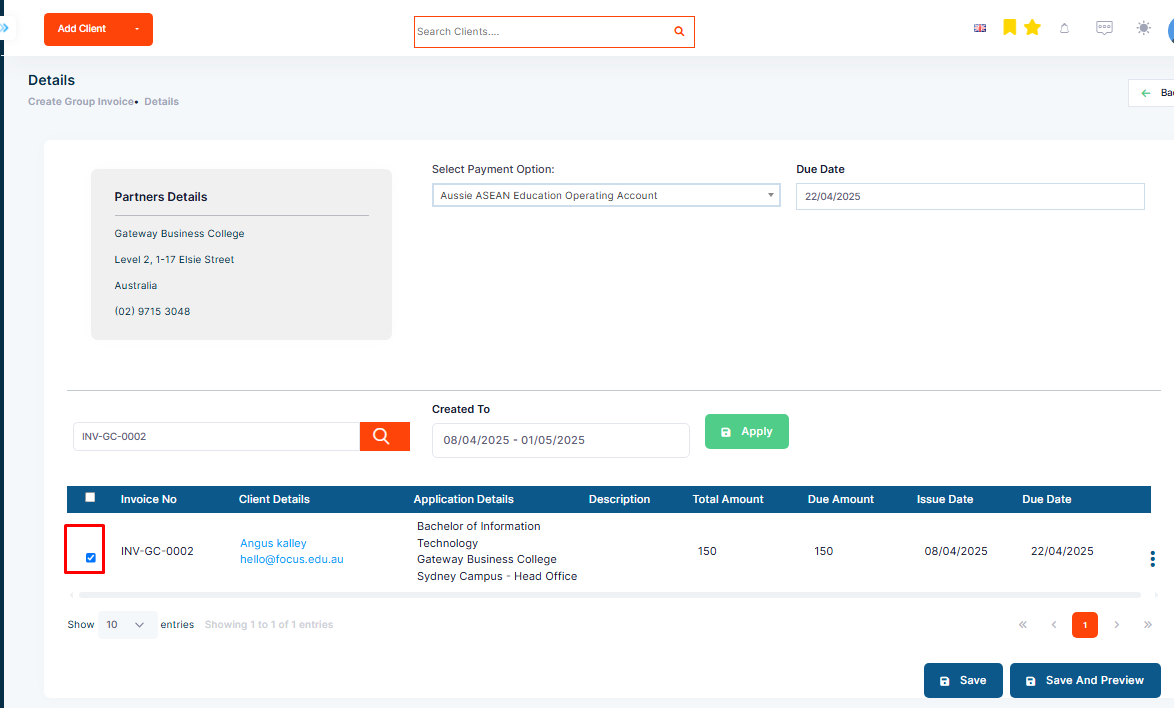
Step 8: Click on the tick marks to group the invoices.
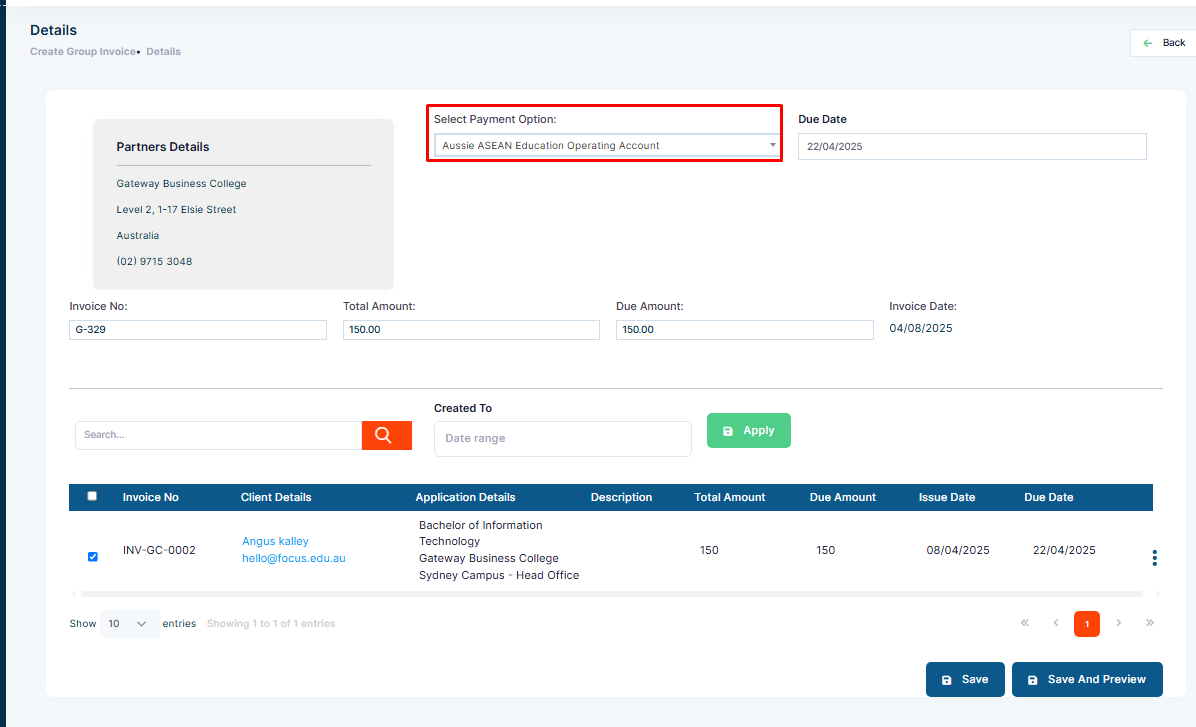
Step 9: Then select the Payment option.
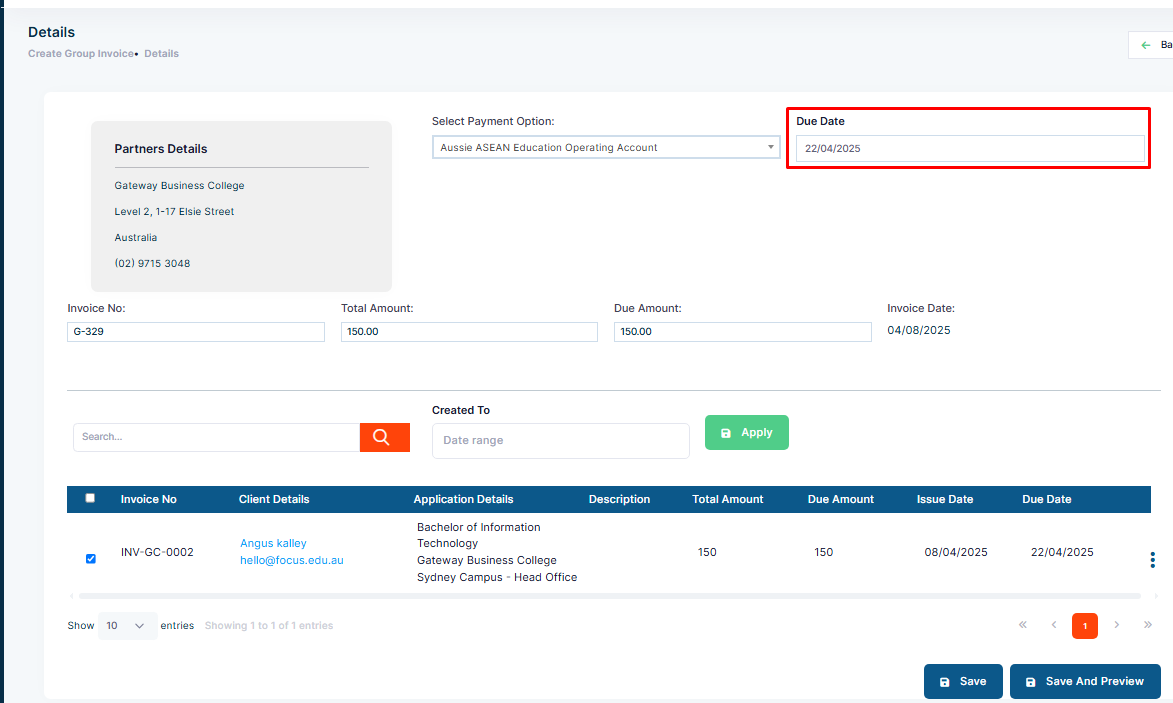
Step 10: Select an invoice Due Date.
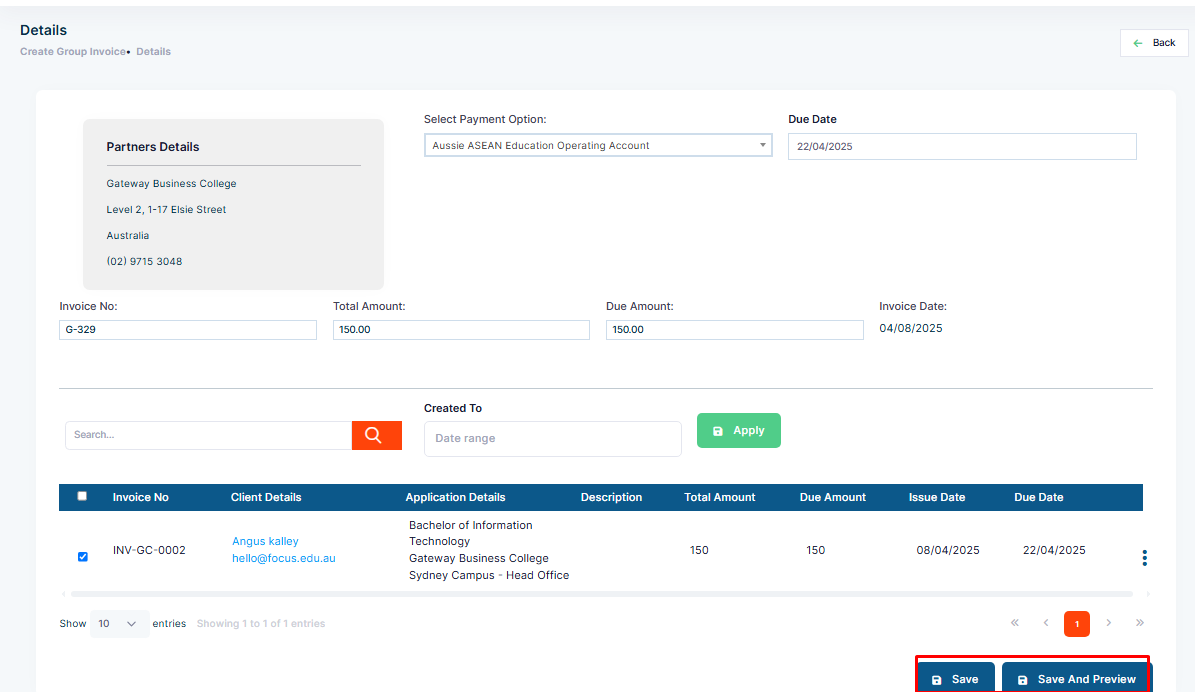
Step 11: Click on the Save tab once you complete it.